
You’re three minutes into explaining quarterly projections to a client when your voice turns into a garbled mess of robotic stutters. They can’t understand you. You can barely hear them. Everyone’s asking “Can you repeat that?” and the professional moment is gone.
Here’s the thing about VoIP problems—they’re almost never the phone service’s fault. Your internet connection is doing double duty, juggling voice packets alongside Netflix streams, cloud backups, and whatever your coworker’s downloading. Traditional phone lines gave each call its own dedicated path. VoIP? Everything competes for the same bandwidth highway.
Voice gets converted to tiny data packets that zip across your network. When that network gets congested, or when your router can’t tell the difference between a time-sensitive phone call and a cat video, quality tanks fast.
What Affects VoIP Call Quality
Think your 100 Mbps internet guarantees perfect calls? Not quite.
Your network’s consistency beats raw speed every time. I’ve seen offices with “blazing fast” 200 Mbps connections that deliver worse call quality than a rock-solid 20 Mbps business line. Why? That faster connection bounces between 180 Mbps and 40 Mbps throughout the day. VoIP hates inconsistency more than it hates slow speeds.
Your equipment age shows up fast. That router you bought in 2018? It wasn’t designed to prioritize voice packets when fifty other devices are screaming for attention. Same goes for those $15 headsets—network optimization can’t fix cheap microphones that pick up every keyboard click and coffee slurp within ten feet.
Here’s what most businesses miss: upload bandwidth. Your internet plan probably advertises download speeds (the big number in the ads) but provides way less upload capacity. VoIP needs both directions equally. Ten simultaneous calls might need just 1 Mbps download but choke on your connection’s measly 5 Mbps upload—especially when someone’s uploading a 100 MB presentation.

Configuration settings hide everywhere. Your router’s probably treating that critical client call exactly like someone’s Spotify stream. Firewalls sometimes block the UDP ports VoIP needs, forcing calls through backup methods that work poorly. The codec your system picks (usually automatically) might be trading crystal-clear audio for bandwidth savings you don’t actually need.
Geography matters too. Routing your call through servers in another state adds delay at every jump. Some providers route smarter than others—it’s worth asking.
Common VoIP Audio Problems and Their Causes
Three technical gremlins cause 90% of the complaints I hear. Once you know what you’re listening for, diagnosis gets way easier.
Latency and Delay Issues
Ever had that awkward moment where you both start talking at once, then both stop, then both start again? That’s latency—the gap between speaking and the other person hearing you.
The technical measurement is simple: how long does voice data take traveling from your mouth to their ear? Under 150 milliseconds, you won’t notice it. Push past 300 milliseconds and normal conversation becomes this weird walkie-talkie experience where you have to wait for the other person to finish before responding.
Here’s where voip latency issues stack up: Physical distance adds unavoidable delay (even data can’t beat physics). Each router along the path needs microseconds to decide where packets go next. Your codec spends time compressing and decompressing audio. Then there’s queuing—packets waiting in line when your network’s congested.
Satellite internet users get this worst. That signal travels 22,000 miles up to orbit and back. You’re guaranteed 500+ milliseconds just from distance.
Your VoIP system adds buffers intentionally, trading a bit of delay for smoother audio. But set those buffers wrong—too big or too small—and you’ve made the problem worse instead of better.
Jitter and Choppy Audio
Voip jitter is why your caller suddenly sounds like a Dalek from Doctor Who.
Packets should arrive at steady intervals—say, every 20 milliseconds. Jitter means they’re showing up at 18ms, then 26ms, then 19ms, then 31ms. That irregular timing creates choppy, robotic voices that drop syllables randomly.
Network congestion causes most of it. Someone starts a massive file transfer and suddenly voice packets get shoved aside unpredictably. Wi-Fi makes it worse because wireless signals deal with interference, competing devices, and having to resend corrupted data.
Your system uses a jitter buffer trying to smooth things out. It holds packets briefly, then plays them at consistent intervals. Problem is, this buffer’s walking a tightrope—absorb enough variation to fix choppiness, but stay small enough to avoid adding noticeable delay. Once jitter exceeds 30 milliseconds, standard buffers start failing.
Multiple network hops compound everything. Six routers between you and your caller means six chances for timing to go wrong. Web browsing creates especially unpredictable patterns—quick bursts of traffic that wreak havoc on steady voice streams.

Packet Loss and Dropped Calls
Voip packet loss is exactly what it sounds like—data packets disappearing before they reach their destination.
You’ll hear it as brief gaps in audio, missing words, or just dead air where someone was definitely talking. Lose enough packets and the whole call dies. Unlike downloading a file (where lost data gets retransmitted), voice conversations can’t wait around. The moment’s gone, the conversation’s moved on.
Router buffers filling up cause most packet loss. When there’s literally no room for incoming packets, the router just drops them. VoIP systems try concealing small losses—replaying the last bit of audio or interpolating what might’ve been said—but these tricks fail beyond 3-5% packet loss.
Hardware problems create maddening intermittent issues. A network cable going bad drops packets randomly. Routers running too hot start making mistakes. Cheap switches without enough buffer memory discard packets whenever traffic spikes.
Wi-Fi loses packets constantly—interference from neighboring networks, someone walking between you and the access point, that microwave in the break room operating on the same 2.4 GHz frequency. Every time someone heats lunch, call quality tanks.
I’ve seen firewall rules blocking VoIP packets because security settings were too aggressive. VoIP protocols need dynamic ports, and some firewalls hate that.
VoIP Bandwidth Requirements for Clear Calls
Calculating voip bandwidth requirements isn’t just “number of calls times bandwidth per call”—though that’s where you start.
Your codec choice makes a huge difference. G.711 sounds great at 64 kbps for the voice data itself, but you’ll actually use about 87 kbps total once you add IP headers, UDP overhead, and RTP protocol wrappers. G.729 squeezes down to 31 kbps total by compressing more aggressively. Audio quality takes a small hit, but often you can’t tell. Opus is the new kid—it adapts on the fly between 6 kbps and 510 kbps depending on what your network can handle.
| Codec | Voice Data Rate | Actual Bandwidth Needed | Audio Quality | When to Use It |
|---|---|---|---|---|
| G.711 | 64 kbps | 87 kbps | Excellent—landline quality | Internal calls, solid internet |
| G.729 | 8 kbps | 31 kbps | Good—slight compression artifacts | Bandwidth-limited, many concurrent calls |
| G.722 | 64 kbps | 87 kbps | HD quality—noticeably better | Client calls, professional image matters |
| Opus | 6-40 kbps | 26-60 kbps | Excellent—adapts to conditions | Modern systems, unpredictable networks |
| iLBC | 15 kbps | 35 kbps | Acceptable for business | Networks with known packet loss problems |
Five people on calls simultaneously? That’s roughly 435 kbps upload and 435 kbps download with G.711. And here’s the gotcha most people miss: your cable internet advertises 100 Mbps download but only gives you 10 Mbps upload. Upload capacity is your actual constraint.
Don’t plan to use 100% of your bandwidth either. A connection running at 95% capacity is already experiencing congestion and packet loss. Build in 30-50% headroom beyond what the math says you need.
Video calls destroy these calculations. Expect 1-4 Mbps per person depending on video resolution. Screen sharing adds another 1-2 Mbps on top.
Real usage fluctuates too. Silence suppression cuts bandwidth when nobody’s talking. Background music or noisy environments increase consumption. Always plan for peak simultaneous calls, not your average Tuesday morning.
How to Troubleshoot VoIP Quality Issues
Random config changes waste hours. Start simple, gather data, then make informed decisions.
Testing Your Network Connection
Run Speedtest or Fast.com several times throughout your workday. Once at 9 AM doesn’t tell you anything about 2 PM when everyone’s back from lunch streaming YouTube. Watch those upload numbers especially—they’re usually the smoking gun.
Standard speed tests don’t catch VoIP-specific problems, though. You need tools that measure latency, jitter, and packet loss under actual call conditions. Most VoIP providers stick these in their customer portals. Use them. They’ll reveal issues that a great-looking speed test completely misses.
Test from where you’ll actually make calls. Your laptop on Wi-Fi in the conference room performs differently than the wired desk phone at reception. Match your test location to real usage.
Do this during business hours when network load looks like actual workdays. Testing at 6 AM on Sunday tells you nothing useful.
Your benchmark targets: latency under 150ms, jitter under 30ms, packet loss under 1%. Write down your baseline numbers so you’ll know when things degrade.
Checking Router and Firewall Settings
Dive into your router’s admin panel and look for SIP ALG (Application Layer Gateway). Here’s a fun fact: this feature that’s supposed to help VoIP actually breaks it about 80% of the time. Most providers tell you to disable SIP ALG immediately.
Make sure the right ports are open. SIP signaling typically uses UDP 5060 or 5061. RTP voice data needs UDP ports somewhere in the 10000-20000 range. Your specific provider might use different ports—check their docs instead of guessing.
Firewall rules can strangle VoIP without meaning to. Some firewalls aggressively close UDP connections, cutting off active calls. Session timeout settings need to accommodate 30-60 minute conversations, not 5-minute web sessions.
Watch for double NAT—that’s when you’ve got two routers doing network address translation in sequence. You’ll see two different private IP ranges like 192.168.1.x behind a 192.168.0.x network. This confuses call routing and often blocks inbound calls entirely.
Count your connected devices honestly. Most consumer routers handle 10-25 devices fine but start struggling past that. Computers, phones, tablets, smart speakers, security cameras, smart thermostats—they all count. Each active connection eats router processing power.

Monitoring Call Quality Metrics
Business VoIP systems track quality stats if you know where to look. Check your phone system’s admin portal or dig through your desk phone’s diagnostic menus. MOS (Mean Opinion Score) above 4.0 means good quality. Below 3.5? You’ve got problems.
Watch real-time stats during actual calls. Many IP phones show current latency, jitter, and packet loss numbers buried in settings menus. Compare problem calls to successful ones—patterns emerge fast.
Wireshark packet captures are advanced-level stuff, but they reveal everything. Capture traffic during a terrible call and you’ll see exactly what’s failing: timing issues, lost packets, codec problems, weird routing.
Keep a problem log. Which calls had issues? What time? Who was involved? What were symptoms? After a week you’ll spot patterns—maybe quality dies every afternoon at 3 PM (network congestion), or one remote user consistently struggles (their home network needs work).
Have remote workers test from their phone’s hotspot. Quality improves? Their home network’s the culprit. Still terrible? Look at their device or account settings.
Quality of Service Settings for VoIP Networks
Voip quality of service (QoS) tells your network “treat voice packets like they’re rushing to the emergency room—everything else can wait.”
Without QoS, your network sees all traffic equally. That 500 MB file download gets the same priority as your live sales call. Guess which one suffers?
QoS examines each packet and assigns priority. Voice gets the fast lane. Video gets medium priority. Email and file transfers wait their turn. Simple concept, huge impact.
Start with your router’s QoS settings. Business routers make this easier, but many consumer models include basic QoS. You’ll identify VoIP traffic by IP address (your phone system’s location), port numbers (typically UDP 5060 and 10000-20000), or DSCP markings embedded in packet headers.
DSCP tags are like priority stamps. VoIP equipment marks voice packets with DSCP EF (Expedited Forwarding, the value is 46). Configure your router to recognize these marks and prioritize accordingly.
Bandwidth reservation guarantees minimum capacity. Reserve at least 100 kbps per expected simultaneous call. This prevents other applications from grabbing all available bandwidth when usage spikes.
VLAN segmentation is the advanced approach—separate voice and data traffic at the network level. Give VoIP phones their own VLAN with dedicated QoS policies, subnet, and DHCP scope. Requires managed switches and more complex configuration, but delivers the most reliable results.
Here’s what most people forget: QoS only controls traffic leaving your network. Your router can’t prioritize packets once they’re on your ISP’s network. Talk to your internet provider about QoS marking on their equipment so your priority tags get respected all the way to the destination.
Test QoS by starting a call, then launching a big download. No QoS? Call quality dies instantly. Proper QoS? Call stays clear while the download happens at reduced speed.
Common mistakes: prioritizing too many traffic types (defeats the whole purpose), reserving too much bandwidth for voice (starves other apps unnecessarily), configuring QoS on your router but nowhere else in your network.
Equipment and Network Upgrades That Improve Call Quality
Strategic upgrades beat random spending. Fix your actual bottlenecks, not imaginary ones.
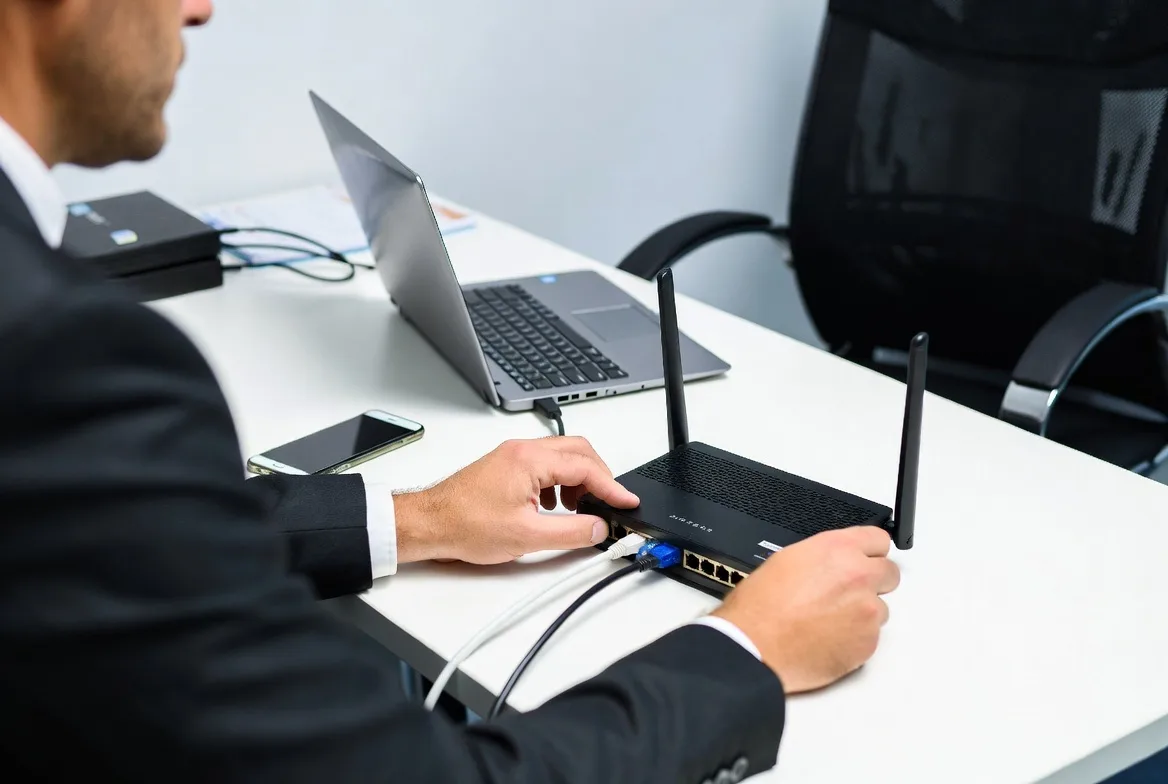
Replacing your router delivers the biggest improvement most often. Business-grade units from Cisco, Ubiquiti, or Fortinet include real QoS engines, actual processing power, and enough memory to handle dozens of devices. Look for models specifically marketed for VoIP—features like SIP-aware firewalls and RTP prioritization matter.
Managed switches enable VLAN separation and port-level QoS. They cost 3-4x more than unmanaged switches, but you get granular traffic control. Power over Ethernet (PoE) capability is worth paying for—one cable per phone instead of dealing with power adapters and outlet constraints.
Headsets affect how you sound to others more than anything. Professional models ($100-200) include noise-canceling mics that suppress keyboard clatter and office chatter. Echo cancellation prevents that annoying feedback loop. Wideband audio support delivers HD voice when your system supports it. Cheap headsets make you sound cheap—simple as that.
Internet service upgrades solve fundamental capacity problems. Fiber connections give you symmetric bandwidth—100 Mbps upload matches 100 Mbps download. That upload symmetry eliminates the bottleneck that plagues cable and DSL. Business-class service includes SLA guarantees for uptime and performance, plus you get a phone number for support that actually answers.
Dedicated circuits for voice traffic cost more but guarantee quality. Even a secondary inexpensive connection—maybe a 4G/5G backup line—can handle voice while your primary connection deals with data. Bonus: automatic failover when your main connection fails.
Wi-Fi access point upgrades help if you’re running wireless VoIP phones. Wi-Fi 6 access points handle more devices simultaneously with better latency than older standards. Deploy multiple APs to ensure strong coverage—weak signals mean packet loss and jitter no matter how fancy your router is.
Cellular backup maintains calling during internet outages. Some systems automatically switch to cellular when they detect primary connection problems. Worth every penny for businesses where communication downtime equals lost revenue.
Session border controllers (SBCs) make sense for larger deployments. These specialized devices sit between your network and your provider, handling protocol translation, security, and quality monitoring. Overkill for five users, essential for fifty.
Network quality isn’t just a technical concern—it’s a business continuity issue. Companies that treat VoIP infrastructure as mission-critical rather than an afterthought see measurably better communication outcomes and fewer support headaches.
Michael Torres
FAQs
Keep one-way latency under 150 milliseconds for natural conversation flow. The ITU-T G.114 standard calls this range acceptable for most business calls. You can push to 150-400ms if you’re willing to accept awkward pauses and talking-over-each-other moments. Past 400ms, forget it—conversation becomes genuinely difficult. Aim for under 100ms on important client calls where professionalism actually matters.
Plan for 85-100 kbps per call with standard codecs like G.711, including all the protocol overhead. Compressed codecs like G.729 squeeze this down to roughly 30 kbps. Math time: multiply bandwidth-per-call by your maximum simultaneous calls, then add 30-50% headroom. Small office with 10 people potentially on calls at once? You need about 1.3 Mbps upload and download dedicated to voice. That’s on top of your data needs, not instead of them.
Wi-Fi causes VoIP problems constantly. Wireless signals deal with interference from neighboring networks, signal strength varying as people move around, and shared channel capacity with every other device. Devices wait for clear channels before transmitting—that’s unpredictable delay right there. Walls, distance from access points, and competing devices all degrade performance. Use Wi-Fi for occasional calls if you must, but wire your desk phones. If Wi-Fi’s unavoidable, invest in quality access points, stick to 5 GHz bands, and enable Wi-Fi QoS settings.
Latency is consistent delay—how long voice data takes traveling from speaker to listener. Jitter is variation in that delay. You might have 50ms latency (totally acceptable) but also 40ms jitter (call quality dies). Picture latency as a train consistently arriving 5 minutes late—annoying but predictable. Jitter’s a train arriving anywhere from 2-10 minutes late randomly. That unpredictability hurts worse than consistent delay. VoIP systems handle moderate latency pretty well. High jitter breaks everything.
For one or two calls on a decent internet connection? Your current router probably works fine. Running a business with multiple simultaneous calls? Absolutely get a router built for VoIP. You need robust QoS capabilities, enough processing power for packet inspection, and VoIP-specific features like traffic prioritization and VLAN support. The reliability difference pays for the router cost within a few months of avoided frustration and professional embarrassment.
Start with online VoIP test tools measuring latency, jitter, and packet loss under simulated call conditions. Your VoIP provider probably offers diagnostic tools in their customer portal—use them. For ongoing monitoring, check call quality statistics in your phone system’s admin interface. Look for MOS scores and network performance metrics over time. Make actual test calls during peak usage hours and document any issues. Compare wired performance against wireless. Test from different locations to isolate whether problems follow specific networks or devices.
Clear VoIP calls don’t require a networking degree. They need adequate bandwidth, proper traffic prioritization, and equipment that’s not actively fighting against you.
Start troubleshooting with measurement, not guesses. Test your network performance. Check router configuration for obvious problems. Monitor actual call quality metrics during real calls. Enable QoS so voice traffic gets priority over that software update downloading in the background. Upgrade strategic equipment—especially routers and internet service—where testing shows actual bottlenecks.
Proper VoIP infrastructure pays for itself fast. Professional call quality strengthens client relationships, improves team collaboration, and eliminates the productivity drain of “Sorry, can you hear me now?” conversations eating five minutes of every call.
What works for you depends on your actual situation. Small offices with 2-5 simultaneous calls benefit most from quality routers and proper QoS configuration. Larger organizations see better returns from managed switches, VLAN segmentation, and dedicated internet circuits. Match spending to your real usage patterns and realistic growth projections, not some vendor’s ideal scenario.