
Think back to 2019. Got a computer problem at work? You’d email IT and wait—maybe hours, maybe until tomorrow—for someone to walk over with a toolbag. Fast forward to 2026, and that model feels absurdly outdated.
These days, most IT problems get fixed while you stay in your chair. A support tech connects through your internet connection, pokes around your system, and usually solves things in minutes. No waiting for someone to finish lunch or drive across town.
This wasn’t some grand plan that IT departments dreamed up. The 2020 pandemic forced everyone’s hand, and what started as a desperate workaround turned out to work better than the old way. Lower costs, faster fixes, and you can hire that brilliant Linux specialist in Portland even though your office is in Atlanta.
But here’s the thing—slapping some remote access software on a laptop doesn’t make you ready for remote support. You’ll need the right tools, proper security (this matters more than you think), and teams that know how to work this way.
What Is Remote Help Desk Support?
Your laptop won’t boot. In the old model, someone physically shows up. With remote IT helpdesk support, a technician somewhere else—could be the next building, could be another state—connects to your machine over the internet and fixes it while you watch.
The tech can see your screen, move your mouse, click through settings, run diagnostic tools, install patches. Everything except physically swap out a dead hard drive.
Here’s how users typically reach out: they might use a chat widget on the company intranet, send an email to support@company.com, or submit a ticket through a self-service portal. Some places still take phone calls, though that’s becoming less common for straightforward issues.
A virtual help desk handles the bulk of everyday IT headaches. Password expired? Reset in 90 seconds. Software won’t launch? Clear the cache and reinstall. Network connection drops constantly? Check the WiFi adapter drivers. Industry data suggests 70-80% of typical requests get resolved this way, no screwdriver required.
The productivity difference is stark. Picture an on-site tech helping someone on the third floor when your problem starts. They need to finish that job, pack up tools, walk or drive to you, set up, and then start diagnosing. Thirty minutes evaporated before they’ve looked at your issue. Remote IT support? Available tech sees your ticket, clicks to connect, and you’re troubleshooting within two minutes.
Knowledge sticks around better too. When Carlos in IT figured out that weird Salesforce error last month, he documented the fix in the ticketing system. Now when the same error pops up for someone else, any tech can search and find Carlos’s solution immediately. That institutional knowledge used to live only in people’s heads—and walked out the door when they quit.

How Remote Help Desk Support Works
Three technology pieces make this possible: something to create tickets, something to let techs control your computer remotely, and something for everyone to communicate through.
You report a problem. The system creates a ticket automatically—captures your description, your computer’s specs, sometimes even screenshots or error logs. Smart systems categorize this instantly: “CEO’s laptop completely dead” jumps ahead of “Excel formatting question from intern.”
An agent grabs the ticket and starts figuring out what’s wrong. For maybe a third of issues, they can fix things without ever touching your machine—they’ll walk you through steps or push changes from their admin console. The rest need remote desktop support, where they actually connect to your device.
Common Remote Support Technologies
Remote access software creates encrypted tunnels between the tech’s computer and yours. They see your desktop, can control everything, and work just like they’re sitting at your keyboard. TeamViewer, AnyDesk, ConnectWise ScreenConnect—these tools use specialized protocols that work reasonably well even on mediocre internet connections.
Security happens through session codes or approval prompts. Consumer version: you read a nine-digit code to the tech over the phone. Enterprise version: your company laptop pre-authenticates through Active Directory, so authorized techs can connect without bugging you each time (assuming you’re not in the middle of something sensitive).
Screen-sharing through Zoom or Teams serves a different purpose. The tech sees what you see and talks you through the fix: “Click that gear icon… now scroll down to Advanced Settings…” This approach works great for training someone on new software, or when company policy says nobody gets full remote control of executive machines.
Then there’s monitoring software running quietly in the background. Tools like NinjaOne or Datto RMM watch your computer’s health 24/7—tracking disk space, monitoring for failed updates, checking if antivirus definitions are current. Sometimes these systems fix problems before you notice. Your laptop might download and install critical patches at 2am Tuesday, and you never knew there was an issue.
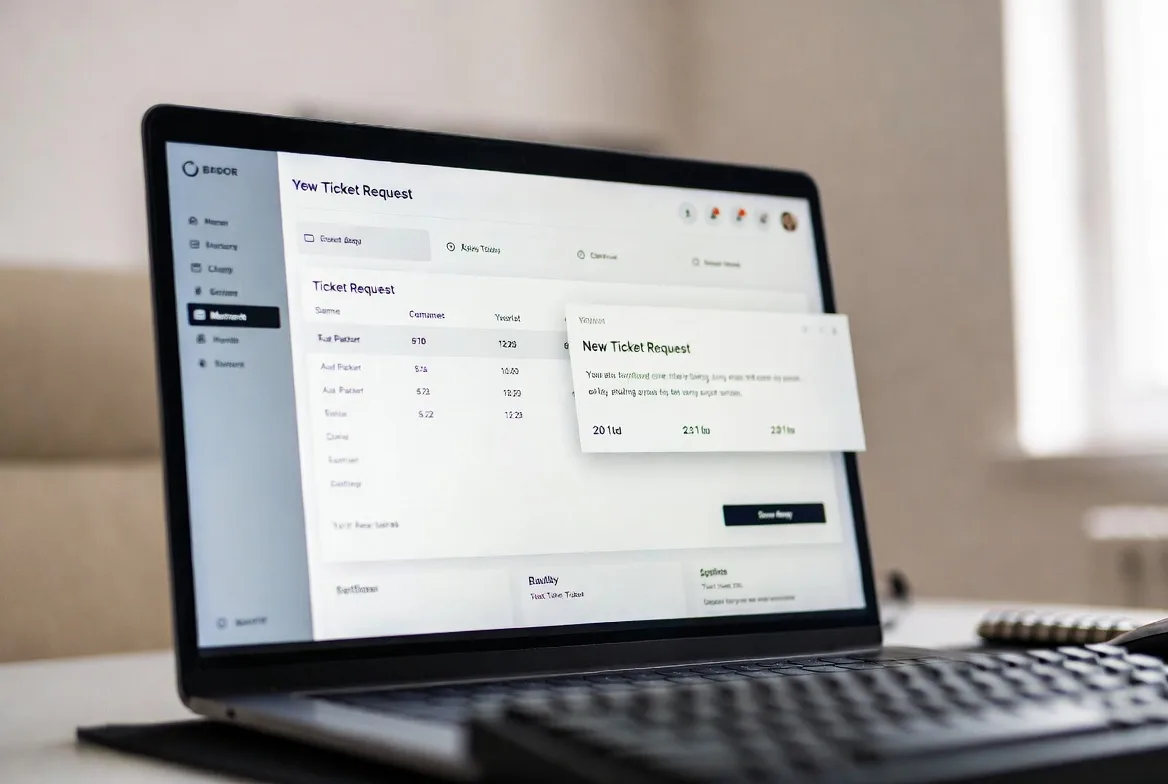
Typical Support Workflow
Here’s how a standard ticket progresses:
- You submit the request – “Outlook keeps crashing when I open attachments”
- System does initial sorting – Automated rules tag this as “email client issue, medium priority”
- First contact happens fast – Agent replies within minutes: “Got it, looking into this now”
- Tech connects and investigates – They remote into your laptop, check Event Viewer logs, examine Outlook settings
- They try a fix – Maybe it’s a corrupt add-in, so they disable it and restart Outlook
- You test it – “Open a few emails with attachments and let me know if it crashes”
- Documentation gets updated – Tech notes: “Corrupted Adobe Acrobat add-in v12.4 causes Outlook crash on .pdf attachments, disabled add-in, problem resolved”
- Ticket closes – Marked solved, added to metrics for this month’s reporting
Complex stuff that can’t be fixed remotely—failed motherboard, sketchy network cabling, monitor with actual smoke coming out—those get escalated. Either specialized teams take over, or someone schedules an on-site visit. Well-designed remote troubleshooting systems keep these escalations under 20% through good tools and detailed documentation.
Remote Help Desk Tools and Software Options
Choosing remote helpdesk tools feels overwhelming because the market splits into overlapping categories, each vendor claiming they do everything.
Ticketing platforms manage the workflow. Who’s working on what ticket? What’s the complete conversation history? How long until we hit our service level agreement deadline? Systems like Zendesk, Freshservice, or Jira Service Management track all this and spit out reports your manager actually wants to see.
Remote access tools are the actual connection to user devices. Enterprise options—think expensive, but loaded with security features, audit logging, and integration with your existing identity systems. Consumer-grade options—simpler, cheaper, but lacking the controls that keep auditors happy.
Knowledge bases store your accumulated wisdom. Every solved ticket, every procedure, every “here’s how you fix the weird printer issue on the fourth floor” document. Confluence and SharePoint are common choices. Specialized platforms like Guru or Document360 focus specifically on making knowledge searchable and keeping it current.
Communication tools connect your team and users. Email and phone still exist, but most teams live in Slack or Microsoft Teams now. Some companies embed chat widgets right into their intranet homepage so users can describe problems without leaving their workflow.
Shopping for remote support software? Watch for these capabilities:
- Works on everything – Your users have Windows laptops, the marketing team swears by MacBooks, developers run Linux, everyone has iPhones or Androids
- Unattended access – Can you connect to a locked conference room PC at midnight to install updates? You’ll want this.
- Session recording – Automatic logs of what happened during remote sessions (compliance requirements, training material, dispute resolution)
- Secure file transfer – Moving patches, installers, or diagnostic files without email attachments
- Multiple monitors handled properly – Half your users have two or three displays; your tool should show all of them
- Mobile device support – Phones and tablets need different approaches than computers
| Software | Key Features | Pricing Model | Best For | Integrations |
|---|---|---|---|---|
| TeamViewer | Works across platforms, unattended access, augmented reality for hardware guidance | Per-user subscription starts around $50/month, scales to $90+ | Teams supporting mixed Windows/Mac/Linux environments globally | ServiceNow, Salesforce, Zendesk |
| ConnectWise Control | Records every session automatically, white-label options, can host on your own servers | Per-technician pricing from $30-60/month depending on features | Managed service providers, enterprises with strict security requirements | ConnectWise Manage, Autotask PSA |
| Splashtop | Optimized for speed, excellent mobile apps, file transfer drag-and-drop | Per-endpoint model $5-25/month based on features | Organizations managing hundreds of devices, remote workforce support | Active Directory, Google Workspace |
| Freshdesk | Everything bundled—ticketing, remote access, AI chatbot, knowledge base | Tiered by features $15-80 per agent monthly | Small to medium businesses wanting one platform instead of piecing tools together | Slack, Jira, Microsoft Teams, Shopify |
| NinjaOne | Remote monitoring plus remote access, automated patch management, endpoint backup | Per-device pricing typically $3-8/month | IT teams focused on preventing problems instead of just fixing them | Microsoft 365, various PSA platforms |
Most vendors let you try before buying. Don’t just click through the demo—actually use it. Have your team handle real support tickets during the trial. You’ll discover friction points fast: “Why does it take six clicks to transfer a ticket?” or “This mobile app is unusable on iPhone SE screens.”

Benefits of Switching to a Virtual Help Desk
Money talks, so let’s start there. Eliminate driving between support calls and each tech handles way more tickets daily. Your support engineer who completed 8-10 requests when everything required walking or driving? They’re now knocking out 15-20 through remote IT support. You’ve basically doubled productivity without hiring anyone.
Facilities costs drop too. Why maintain IT staff in every regional office when they can work from a central hub in a cheaper city? Or skip the office entirely for folks working from home. One financial services company I know consolidated five regional IT teams into one central operation and saved $340,000 annually just on office space and parking.
Response times shrink dramatically. Instead of “the tech will be there in 45 minutes after finishing their current call,” users connect with available agents in under five minutes for urgent issues. When something breaks that affects 20 people—say, the accounting software crashes—you can throw three specialists at it simultaneously. Try doing that when everyone’s driving around in vans.
Hiring gets easier. Need a specialist who understands legacy AS/400 systems? Good luck finding that person within 30 miles of your Topeka office. With a virtual help desk, you can hire that expert in New Jersey without relocation drama. Geographic limitations disappear for knowledge work.
Business continuity improves in ways you don’t appreciate until you need it. Remember that ice storm in February 2025 that shut down half the Dallas metro area? Companies with mature remote support kept running normally. Traditional IT departments with everyone stuck at home unable to access on-site systems? Their users were dead in the water for three days.
Scaling becomes elastic instead of lumpy. Holiday retail spike needs extra support capacity? Add software licenses and contractors. You’re not provisioning office space, desks, equipment, parking spots. Come January when volume drops, you contract without empty cubicles mocking your budget.
Knowledge retention actually works. When Sarah left for another job, 12 years of troubleshooting experience didn’t walk out with her. Her ticket resolutions—thousands of them—remain searchable in the knowledge base. New hires can find “how Sarah fixed that Exchange mailbox corruption in 2024” and apply the same solution today.
Setting Up Work from Home IT Support Teams
Internet connectivity needs real attention. Your work from home IT support staff can’t help anyone if their own connection keeps dropping. Minimum viable: 25 Mbps download, 10 Mbps upload. That’s the floor, not the target. When someone’s handling three simultaneous screen-sharing sessions while on a video call, they’ll burn through bandwidth fast.
Company-owned equipment isn’t negotiable despite what people tell you about wanting to use their gaming PC. Standard issue should include:
- Two monitors (not optional—techs need one screen for the user’s desktop, one for documentation and tools)
- Decent headset with noise cancellation (so customer calls don’t pick up barking dogs or screaming kids)
- Webcam for video support when talking through complex issues
- Backup internet plan (USB mobile hotspot or secondary ISP subscription)
Security gets complicated when remote IT helpdesk staff access everything from residential networks with who-knows-what-devices connected to the same router.
VPN mandatory for everything. All connections to corporate resources flow through encrypted VPN tunnels. Period. I’ve seen companies try split-tunneling arrangements where some traffic bypasses the VPN. Don’t. You’ll create security gaps and compliance auditors will have a field day.
Multi-factor authentication everywhere. Remote access tools, ticketing systems, admin consoles—all require MFA. Hardware security keys (YubiKey, Titan Key) beat SMS codes every time. Yes, they cost $50 per employee. Yes, they’re worth it.
Endpoint protection on steroids. Standard antivirus isn’t enough. Deploy EDR (Endpoint Detection and Response) that monitors for weird behavior indicating compromised credentials or insider threats. These tools watch for patterns like “why is this support tech suddenly accessing payroll systems at 3am?”
Physical screen privacy. Require privacy filters on monitors. Tech working from home might have a partner, roommate, or teenager wandering by. They don’t need to see confidential employee data or customer payment information displayed on-screen.
Training needs expand beyond technical knowledge. Remote troubleshooting requires different skills than in-person support. Invest in workshops covering:
- Writing clear explanations for non-technical users (because half your support happens via chat or email now)
- Active listening on phone calls when you can’t see body language or facial expressions
- Looking professional on video calls (yes, we need to discuss your webcam being pointed at the ceiling)
- Managing time without someone watching over your shoulder
- Recognizing frustration in text messages—”it’s fine” usually means it’s definitely not fine
Communication protocols prevent people from feeling isolated and disconnected. Daily 15-minute standups (actually 15 minutes, not “whoops it’s been 45 minutes”) let the team surface urgent issues and share wins. Create Slack channels for quick questions that would’ve been hallway conversations in offices.
Set core hours when everyone must be online—say 10am to 3pm in your primary timezone. Outside those windows? Flexibility. Some people crush tickets at 6am, others hit their stride at 8pm. Judge results, not hours logged.
Performance metrics need rethinking for remote contexts. Measuring “tickets touched” or “hours logged” encourages people to game the system. Focus on outcomes instead:
- Resolution time from ticket creation to closure
- Customer satisfaction scores
- First-contact resolution rate (percentage solved without escalation)
- Knowledge base contributions
The best remote desktop support specialists might spend 40 minutes on a ticket that others close in 10, but they’re fixing root causes while the quick closers apply temporary band-aids.

Remote Troubleshooting Best Practices
Get complete information before connecting to anything. Build intake forms that capture:
- Actual error messages (screenshot required, not “it said something about memory”)
- Exact steps to reproduce the problem
- When it started happening (this morning? last week? since we deployed that update?)
- Recent changes to the system
- Who else is affected (just you? your whole department? everyone?)
This upfront investment frequently points straight to the answer without needing remote sessions. Oh, the problem started Tuesday morning and 15 people in accounting have it? That’s when we pushed the new tax software update—probably a conflict.
Create decision trees for common problems. New techs follow flowcharts: “Outlook won’t open → Step 1: Verify network connectivity → Step 2: Check if Exchange server is up → Step 3: Test with Outlook safe mode → Step 4: Examine local profile for corruption → Step 5: Check credential expiration.” Consistency speeds resolution and training.
Document everything, even the boring stuff. Password reset in 30 seconds? Still document it. When the same user calls next week with the same issue—again—that documentation reveals a pattern suggesting credential sync problems or someone who needs additional training on the password policy.
Record videos for complicated procedures. Three-minute screen capture showing VPN configuration beats 2,000 words of written instructions. Tag these in your knowledge base by issue type, and suddenly your tier-1 team can handle things that used to require escalation.
Narrate what you’re doing during remote sessions. Some users get uncomfortable watching their mouse move by itself while mysterious windows pop up. Talk through it: “Opening Event Viewer now to check system errors… okay, I see a bunch of warnings about disk space, let’s look at what’s eating up your drive…” This reduces anxiety and provides informal training.
Know when to quit trying remote approaches. Spent 45 minutes attempting to fix what’s clearly a dead hard drive? Stop. Escalate to on-site support or ship a replacement. I’ve watched techs waste 90 minutes on hardware failures because they hated admitting defeat. That’s 90 minutes they could’ve spent solving five other tickets.
We cut average ticket resolution time by 40% after going fully remote for support. But the technology wasn’t the secret—plenty of places have the same tools we use. The difference was building a culture where documentation became automatic instead of optional. Now our junior techs resolve stuff on first contact that used to require escalating to senior staff, because everything gets captured and shared.
Marcus Chen
Track success through multiple angles:
- First-contact resolution rate – Percentage fixed without escalation or callbacks
- Mean time to resolution – Average duration from ticket creation to closure, broken down by issue category
- Customer satisfaction scores – User ratings after ticket closes (and actually read the comments, not just the numbers)
- Self-service adoption – How many users find answers in the knowledge base before creating tickets
- Escalation rate – Proportion requiring specialized skills or on-site visits
Monitor these by technician, issue type, and time period. Sudden drop in first-contact resolution across the team? Probably that new application rollout needs better documentation. Rising resolution times specifically for network issues? Maybe your infrastructure needs proactive attention before everything catches fire.
FAQs
Security quality varies wildly based on how you implement it, not whether you use remote support at all. Enterprise-grade tools encrypt sessions with AES-256—the same standard your bank uses for online transactions. Session recordings create audit trails showing exactly who accessed which devices and when, what they did, and how long they stayed connected.
The real security risks come from sloppy password policies or inadequate vetting of support personnel, not from the remote connection itself. Healthcare organizations maintain HIPAA compliance using remote support. Financial institutions meet PCI-DSS requirements. Defense contractors satisfy government security standards. All through proper configuration, monitoring, and access controls.
Insecure remote support happens when someone installs TeamViewer free edition with a four-digit PIN, or when credentials get shared between multiple techs, or when nobody reviews access logs. The technology is fine—implementation discipline determines security.
You can technically limp along with 10 Mbps download and 5 Mbps upload. Technically. It’ll feel like moving through molasses—mouse movements lag, screen updates stutter, users get impatient.
Professional-quality experience needs 25 Mbps download and 10 Mbps upload minimum. That handles one or two simultaneous support sessions comfortably. Support staff juggling multiple remote sessions or dealing with 4K displays should target 50+ Mbps download and 20+ Mbps upload.
Connection latency matters as much as raw speed. I’ve seen 100 Mbps connections with terrible jitter or packet loss perform worse than stable 25 Mbps connections. Test your connection quality using DSLReports or Speedtest before committing to remote-first support. Pay attention to consistency, not just peak speeds—advertised “up to 100 Mbps” that actually delivers 40 Mbps at 5pm won’t cut it.
Diagnosis? Absolutely. Remote troubleshooting identifies failing hard drives through S.M.A.R.T. data, catches overheating CPUs via temperature sensors, spots memory errors in system logs. Techs can examine Device Manager, run diagnostic utilities, check BIOS settings—all remotely.
Physical repairs? That requires hands-on intervention. Can’t replace a failed power supply through the internet. Can’t reseat a loose RAM stick via remote desktop. Can’t clean dust out of cooling fans over a video call.
Smart remote teams work around this through “remote hands” arrangements—relationships with local techs or on-site staff who can handle physical tasks under remote guidance. “Unplug the network cable, wait 10 seconds, plug it back into port 3 instead of port 2.” Some organizations ship replacement laptops directly to users with step-by-step video guidance for transferring data and returning the dead unit.
Pricing spreads across a huge range depending on what you need. Basic remote access tools run $20-30 per technician monthly. Full-featured platforms bundling ticketing, remote access, knowledge management, and reporting land in the $50-150 per agent monthly range.
Per-device pricing models (typical for RMM tools) charge $3-10 per managed endpoint monthly. So 500 computers at $5 each equals $2,500 monthly. Enterprise contracts with volume discounts, dedicated support, and custom integrations often knock 30-40% off listed prices.
Budget for total cost of ownership, not just licenses. Implementation requires consulting time or internal staff hours. Training consumes weeks. Integration with existing systems needs development work. Ongoing management and optimization demands attention. First-year TCO often runs double the annual license cost.
Hidden gotchas: some platforms charge extra for session recording, or limit integrations to higher-priced tiers, or count “concurrent sessions” in ways that force you to over-purchase licenses.
Industry benchmarks in 2026 show median first-response times (initial acknowledgment) of 5-15 minutes for high-priority issues and 30-60 minutes for routine requests. Those numbers assume business hours—overnight or weekend response depends entirely on your staffing model.
Actual resolution times vary enormously by complexity. Password reset averages 10 minutes start to finish. Software installation typically takes 30-45 minutes including testing. Complex troubleshooting of intermittent issues might consume 2-4 hours spread across multiple sessions.
Organizations with mature self-service portals and AI chatbots achieve faster initial responses—automated systems reply instantly—but might take longer for complex issues requiring human judgment. Service level agreements typically guarantee response within defined windows rather than promising instant attention. Expecting immediate support for “Excel formatting looks weird” creates unsustainable staffing requirements.
Both approaches work depending on your specific situation. Internal dedicated teams understand your company-specific applications, workflows, and politics better than outsiders. They build relationships with users and accumulate institutional knowledge about “oh yeah, the Phoenix office printer needs a specific driver version or it prints everything sideways.”
Outsourced managed service providers offer 24/7 coverage, specialized expertise for niche technologies, and scalability without hiring overhead. You’re not managing HR issues, providing benefits, or backfilling vacations. They bring established processes and often better tools than small internal teams can justify.
Hybrid models combine both: internal staff for tier-2 and tier-3 support requiring deep business context, outsourced providers for tier-1 help desk and after-hours coverage. This split works well for many organizations.
Company size matters. Fewer than 100 employees? Outsourcing usually makes more financial sense than full-time IT staff. Between 100-500 employees, it depends on technical complexity and industry requirements. Above 500 employees, most justify internal teams supplemented by outsourced specialists for niche technologies.
Remote help desk support evolved from emergency pandemic measure to permanent competitive advantage for companies that implemented it thoughtfully. The technology matured significantly between 2020 and 2026—most previous limitations requiring physical presence disappeared.
Success requires more than buying software licenses. Organizations seeing strong ROI invested in proper infrastructure, comprehensive security controls, and team cultures valuing documentation and knowledge sharing. They recognized that remote IT support fundamentally changes how technicians interact with users, requiring different communication skills and performance metrics than traditional approaches.
Start your transition by identifying high-volume, low-complexity issues remote troubleshooting handles easily. Build confidence and refine workflows before tackling harder scenarios. Track metrics from day one to demonstrate value and spot improvement opportunities early.
The shift toward virtual help desk operations isn’t about replacing human expertise with technology—it removes geographic constraints that previously limited how that expertise gets deployed. Done properly, remote support delivers faster resolutions, lower operational costs, and better experiences for both support teams and the users they serve.