
You’re about to snap a photo of your dog doing something absolutely ridiculous when your iPhone throws up a warning: “Cannot Take Photo—Not Enough Storage.” Your phone’s sitting at 197 MB free. The moment’s gone.
Here’s what most people do wrong: they assume the only fix is upgrading to a phone with double the storage capacity. That’s an $800 solution to a $3-per-month problem. Your iPhone’s memory chip is already maxed out, sure—but Apple’s cloud system exists specifically so you don’t need to cram everything onto that chip.
The whole point of iCloud? It stores your photos, backups, and files on Apple’s servers instead of your device. Take a picture on your phone, and within minutes it appears on your laptop. Your phone backs itself up while you sleep. Drop your device in a lake, and you haven’t lost a single contact or text message.
The confusing part isn’t how it works—it’s figuring out which storage tier you actually need, why your quota disappears so fast, and whether you’re wasting money on space you’ll never touch. This guide skips the marketing speak and focuses on the practical stuff: checking what’s hogging your storage, picking the right plan, and fixing the annoying problems that pop up.
What Is iCloud Storage and What Does It Store?
Apple operates massive data centers filled with servers. When you create an Apple ID, the company carves out a chunk of server space just for you. That slice is what people call iCloud storage.
Your account automatically backs up specific content types:
Photos and Videos: Everything in your camera roll lives here once you flip the switch in settings. Those blurry concert clips from 2019? Still backed up. Every screenshot you forgot to delete? Yep, those too. iCloud Photos means your entire visual history follows you from iPhone to iPad to Mac.
Device Backups: Think of this as a complete freeze-frame of your phone. Which apps you’ve installed, how you arranged your home screen, every text conversation, your alarm settings—all of it. Lose your phone at the beach, grab a replacement at the Apple Store, and within an hour you’re looking at an exact replica of what you had this morning.
Files and Documents: Anything living in iCloud Drive counts against your total. Tax forms, random PDFs, that Pages document you’ve been editing for weeks. Apps like Microsoft Word and Adobe can save directly to this space too if you tell them to.
App Data: The invisible stuff apps need to function properly. Your workout history from the Fitness app, voice memos you recorded, every note you’ve jotted down in Apple Notes, bookmarks from Safari, calendar appointments going back five years.
Mail: Your entire @icloud.com inbox plus every file attachment anyone’s ever sent you. When your uncle forwards that 22 MB video of his vacation, it counts against your quota until you delete it.
Messages in iCloud: Years of conversations stored as one continuous thread across all your devices. Delete a message on your Mac and it vanishes from your phone instantly because they’re pulling from the same source.
What Apple doesn’t count toward your limit: purchased music from iTunes, apps from the App Store, movies you bought through Apple TV. Those exist in a separate bucket that doesn’t affect your storage quota. The iOS operating system itself also gets a free pass.
Here’s where confusion sets in. Your iPhone might say “128 GB” on the box, but you’re paying for 50 GB of iCloud space. These are completely different storage systems. The 128 GB is a physical chip welded inside your phone—you picked that capacity at purchase and you’re stuck with it. The 50 GB lives hundreds of miles away in one of Apple’s buildings. Device storage holds the apps and photos physically on your phone. Cloud storage holds backups and syncs data between your devices.
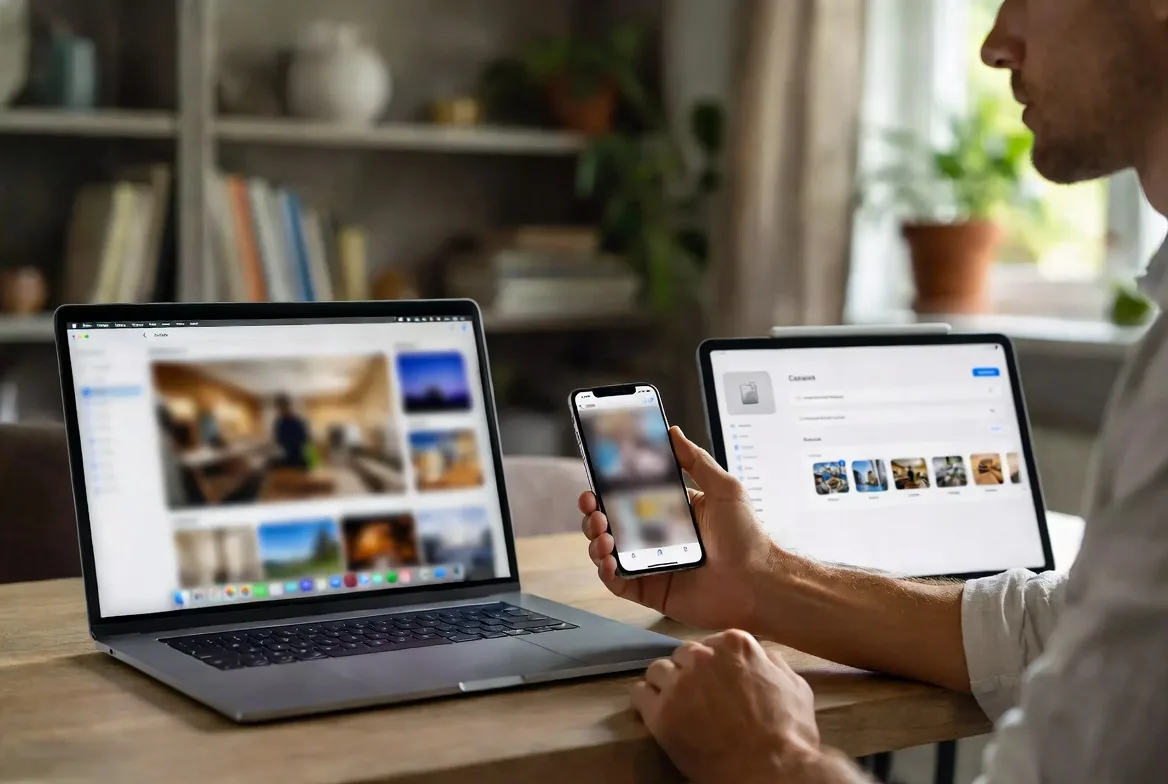
How iCloud Storage Works Across Your Devices
The syncing engine runs constantly in the background without you lifting a finger. Take a photo of your lunch. Before you’ve finished eating, that photo’s already sitting in the Photos app on your MacBook—assuming both devices can reach Wi-Fi.
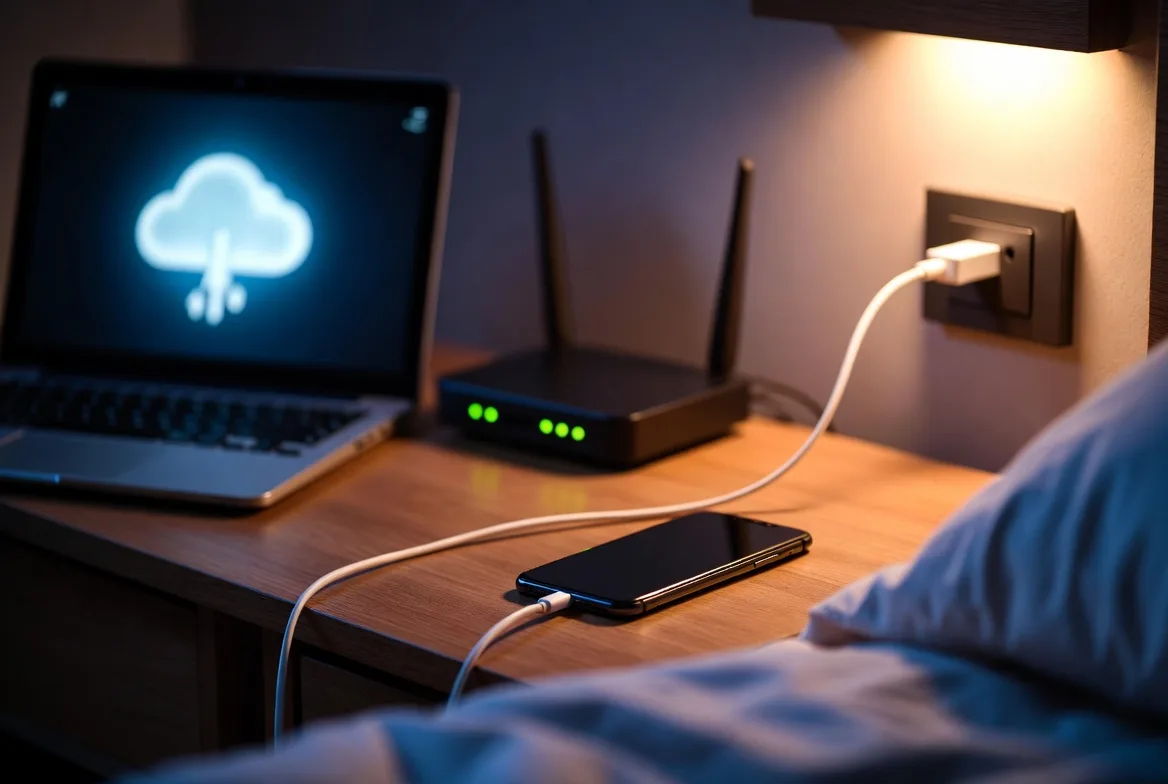
Your phone creates a fresh backup automatically every night around 2 AM, but only if three conditions are met: it’s plugged into power, the screen’s locked, and you’ve got Wi-Fi. Miss any one of those and the backup waits until tomorrow. Apple doesn’t maintain multiple backup versions on the basic plans—tonight’s backup completely replaces yesterday’s.
Most users don’t realize backups are their last line of defense. You don’t notice their value—until the moment you lose everything.
David Lin, Mobile Systems Engineer
You can reach your iCloud data from just about any device:
iPhone and iPad: Everything’s baked into iOS from the factory. Open Photos and your entire library appears. Check the Files app and iCloud Drive shows up as a location. Zero setup required.
Mac: Dive into System Settings and you’ll find an iCloud section where you toggle what syncs. You can mirror your Mac’s Desktop and Documents folders to the cloud, making those files accessible on every Mac you own.
Windows PC: Apple offers “iCloud for Windows” as a free download. It’s clunkier than the Mac version and occasionally buggy, but it functions. Photos dump into Windows File Explorer, bookmarks sync to your browser of choice.
Any Web Browser: Navigate to iCloud.com from literally any computer—your work PC, your friend’s laptop, a library terminal. Log in and you get browser-based versions of Photos, Mail, Notes, Pages, and most other Apple apps. Handy when you need a document but left your devices at home.
The whole system depends on decent internet speeds. Uploading a 12-minute 4K video over sketchy coffee shop Wi-Fi might take ninety minutes or more. Apple’s smart enough to queue large files for later and prioritize small stuff like contacts first, but patience helps.
One quirk trips up new users constantly: deleting a photo from your iPhone to free up space also erases it from iCloud and every other device signed into your account. There’s no “keep this in the cloud but remove it from my phone” button for specific items. You can enable “Optimize iPhone Storage” to automatically downsize local copies while keeping full versions in the cloud, but that’s an all-or-nothing setting.
iCloud Storage Plans and Pricing
Apple sells four tiers. The free option barely qualifies as functional for modern usage, and the paid tiers range from what you’d spend on a candy bar to the price of two premium lattes monthly.
| Storage Tier | Cost Per Month | Space You Get | Extra iCloud+ Features | Makes Sense For |
|---|---|---|---|---|
| Free | $0.00 | 5 GB | None—basic storage only | People who take maybe five photos per month and never back up their phone |
| iCloud+ 50 GB | $0.99 | 50 GB | Private Relay browsing, Hide My Email addresses, storage for 1 HomeKit camera | Single person who shoots photos regularly but not obsessively |
| iCloud+ 200 GB | $2.99 | 200 GB | Private Relay browsing, Hide My Email addresses, storage for 5 HomeKit cameras | Families splitting one shared plan, or individuals who capture lots of photos |
| iCloud+ 2 TB | $9.99 | 2 TB | Private Relay browsing, Hide My Email addresses, unlimited HomeKit camera storage | Households running multiple devices, anyone filming 4K video frequently |
What You Get with Free iCloud Storage
Five gigabytes sounds generous until reality hits. A single iPhone backup typically consumes 7-12 GB on its own. You could potentially store around 1,000 photos if you completely skip device backups. Or back up your phone but keep zero photos in iCloud. Choose one path.
The free tier also strips away iCloud+ perks. You lose Private Relay, which is Apple’s privacy-focused alternative to a VPN that masks your Safari browsing. You lose Hide My Email, which generates disposable email addresses so sketchy websites can’t spam your actual inbox. You lose HomeKit Secure Video storage for any security cameras you’ve connected to your smart home setup.
Bottom line: free iCloud works fine if you only want contacts and calendars synced between devices. Anyone trying to do more hits the wall within two or three weeks.
When You Should Upgrade Your iCloud Storage
You’ll recognize the moment. Notifications start appearing multiple times daily. “iCloud Storage Full” becomes your new notification banner. Your phone stops completing its midnight backup. Fresh photos pile up on your device but refuse to upload. Your @icloud.com email starts bouncing incoming messages because your mailbox exceeded its limit.
Situations where upgrading makes sense:
– You photograph something worth keeping more than twice a week
– You value the security of automatic nightly backups
– You own multiple Apple devices and want seamless syncing between them
– You’re setting up Family Sharing so multiple people can split one storage pool
– You installed HomeKit security cameras that need cloud recording
The 50 GB tier handles most individuals just fine. Shoot photos regularly without going overboard? That plan works. The 200 GB option shines for families—up to six people can share the cost and the capacity. The 2 TB tier fits households juggling three iPhones, a couple iPads, and two MacBooks, or anyone who records their kid’s basketball games in 4K every weekend.
Here’s the math that matters: if you spend more than 15 minutes each month playing Tetris with your files—deciding what to delete, moving photos to your computer, clearing out old messages—you’re burning time worth more than the $2 difference between storage tiers. Stop overthinking it and upgrade.
How to Check and Manage Your iCloud Storage
Checking your usage takes maybe 20 seconds.
On iPhone or iPad: Open Settings, tap the banner at the very top showing your name and profile picture, then choose iCloud. A colored bar displays your consumption.
On Mac: Click the Apple logo in the corner, pick System Settings, select your name from the left sidebar, then click iCloud. Same colored bar shows up.
For a detailed breakdown showing exactly what’s devouring your quota:
On iPhone/iPad:
1. Launch Settings and tap your name at the top
2. Pick iCloud from the options
3. Choose “Manage Account Storage” (the exact wording shifts slightly between iOS versions)
4. Everything appears ranked by size—Backups usually dominates, followed by Photos, then Messages or Mail
Tap any category to see details. Under Backups, you might discover your old iPhone X’s backup still sitting there even though you upgraded to an iPhone 14 nine months ago. Under Messages, you can review which conversations are stuffed with video attachments.
On Mac:
1. Open System Settings and click your name
2. Pick iCloud from the menu
3. Click “Manage” sitting next to your storage bar
4. Categories appear in the left sidebar—click one to explore options
Common storage hogs and how to handle them:
Old Device Backups: Your previous phone’s backup persists in iCloud long after you’ve stopped using that device. Navigate to the Backups category in your storage manager, select the outdated iPhone or iPad, scroll to the bottom, tap “Delete Backup.” Poof—gone in seconds.
Messages: Attachments accumulate frighteningly fast, especially in group texts. Check the Messages category in storage settings to see which conversations hold the most data. Delete entire threads you don’t need anymore, or open specific conversations and manually remove individual photos and videos.
Photos: This category probably tops your list. Rather than deleting precious memories, head to Settings → Photos and enable “Optimize iPhone Storage.” This setting keeps small thumbnail versions on your phone while storing full-resolution originals in iCloud exclusively. Your device storage drops by 20-30 GB while your complete photo library remains intact in the cloud.
Mail: Email attachments count fully against your quota. Search your inbox for messages containing large files—contracts, presentations, high-resolution images from your photographer friend. Delete what you don’t need, then remember to empty your Trash folder manually (deleted items sit there consuming space until you specifically empty Trash).
App Data: Certain apps hoard surprising amounts of information in iCloud. Review the app list in your storage settings. Apps you deleted six months ago might still have data lingering. Tap them and choose to delete their iCloud content permanently.
Critical warning: deleting photos or files from iCloud removes them from every single device immediately. Double-check you’ve got another backup somewhere before you start permanently nuking stuff.
How to Upgrade or Downgrade Your iCloud Storage Plan
Changing your plan takes roughly 30 seconds start to finish.
On iPhone or iPad:
1. Open Settings and tap your name banner
2. Choose iCloud from the list
3. Tap “Manage Account Storage” or whatever similar wording appears
4. Look for “Change Storage Plan” or “Buy More Storage”
5. Select your preferred tier
6. Tap “Buy” and authenticate with Face ID or your passcode
On Mac:
1. Open System Settings and click your name
2. Pick iCloud
3. Hit “Manage” located next to your storage bar
4. Find “Change Storage Plan”
5. Choose your new tier and click “Next”
6. Authenticate and you’re finished
On Windows:
1. Launch the iCloud for Windows application
2. Click “Storage”
3. Pick “Change Storage Plan”
4. Select your desired tier and complete the purchase
Apple bills your default payment method—the same card you use for App Store purchases. Upgrade mid-month and you’ll see a prorated charge covering the partial month. Your new storage capacity activates immediately.
Downgrades follow the same process, but the change doesn’t take effect until your current billing cycle ends. Say you’re on 200 GB and downgrade to 50 GB on March 15th. You keep access to all 200 GB until April 1st (or whenever your renewal date falls). If you’re currently using 120 GB when the downgrade activates, iCloud stops accepting new content until you either delete 70 GB worth of stuff or upgrade again.
To cancel completely, downgrade all the way to the free 5 GB tier. You won’t receive a refund for the current month, but future billing stops. If you’re consuming more than 5 GB when the free plan kicks in, backups cease, photo uploads pause, and you can’t receive new email if your mailbox exceeds the limit.
Check your subscription status anytime: Settings → Your Name → Subscriptions on iOS, or through your Apple ID account page on Mac.
Common iCloud Storage Problems and Solutions
“iCloud Storage Full” Warnings
This alert means you’ve maxed out your current plan. Backups halt immediately, photos queue indefinitely waiting for space, new emails bounce back to senders. Quick fixes:
– Delete device backups from phones or tablets you no longer own
– Hunt down large video attachments in Messages and nuke them
– Remove photos you genuinely don’t care about (then check Recently Deleted afterward—items sit there 30 days still consuming space)
– Upgrade to the next tier if you legitimately need everything currently stored
Backup Failures
Your iPhone backup might fail even when you’ve got available space. Common causes:
– Unreliable Wi-Fi: Backups need solid, uninterrupted internet for 30+ minutes
– Not charging: Backups exclusively trigger when plugged into power
– Screen unlocked: Your phone must be locked overnight for backup to start
– Corrupted previous backup: Delete the existing backup entirely and let iCloud build a fresh one from scratch
Syncing Delays
Photo you shot two hours ago still hasn’t appeared on your Mac? Files refusing to show up in iCloud Drive? Check these factors:
– Wi-Fi connection on every device (cellular data doesn’t sync most content types)
– You’re signed into the identical Apple ID everywhere
– iCloud Photos and iCloud Drive are actually toggled on in settings—they sometimes mysteriously turn off
– You’ve got sufficient available storage to complete the upload queue
Family Sharing Confusion
When you share iCloud storage with family members, everyone pulls from one combined pool, but individual data stays completely separate. Your spouse can’t browse your photos unless you explicitly share specific albums. Your kids can’t see your files. The family organizer (whoever initially set it up) can view how much storage each person consumes but can’t access anyone’s actual content.
One person filling the shared space affects the entire family. If your teenager uploads 175 GB of drone footage, your backup stops too. Check individual usage here: Settings → Your Name → Family Sharing → iCloud Storage.
Accidental Deletions
Deleted something by mistake? Check Recently Deleted in Photos—items stick around for 30 days before permanent erasure. iCloud Drive has an identical Recently Deleted folder that holds files for 30 days. After that window closes, the data’s gone forever unless you maintained another backup somewhere else.
FAQs
Not even slightly. These are completely separate systems serving different purposes. Your iPhone’s storage is the physical memory chip permanently installed inside—128 GB, 256 GB, whatever capacity you chose at purchase. You cannot add more after buying the phone. iCloud storage lives on Apple’s servers in data centers potentially thousands of miles away. Upgrading from 50 GB to 200 GB of iCloud space doesn’t add a single byte to your phone’s physical capacity. That said, enabling “Optimize iPhone Storage” for photos does help indirectly—it stores thumbnail versions locally and keeps full-quality originals exclusively in iCloud, which frees up space on your actual device.
Yes, any paid plan (50 GB or higher) can be shared with up to five additional people through Family Sharing. The family organizer sets this up under Settings → Your Name → Family Sharing → iCloud+. Everyone shares the total capacity, but each person’s photos, files, backups, and messages remain completely private from other family members. You can see that your daughter is consuming 47 GB, but you cannot view what she’s actually storing. If one person maxes out the shared storage, it impacts everyone—nobody’s phone backs up until someone deletes data or the organizer upgrades the plan.
Not directly. Your phone’s speed depends on its processor chip, RAM, and how much free device storage remains available. Whether your iCloud storage is 50 GB or 2 TB makes zero impact on performance. However, if your device storage is nearly maxed out (like 95% full), your iPhone can definitely slow down. Using “Optimize iPhone Storage” for photos frees up device space by moving full-resolution images to iCloud, which might improve performance as a side effect. But simply paying for more iCloud storage while your phone remains stuffed with apps and videos won’t make anything faster.
The genuine value of iCloud isn’t the storage itself—it’s never needing to worry about backups until disaster strikes. Drop your phone in a toilet? Restore everything to a replacement device in 20 minutes. Accidentally delete a photo? It’s sitting in Recently Deleted for 30 days. Need a document while visiting a friend? Pull it up on their computer through iCloud.com.
Start by investigating what’s actually consuming your space right this minute. Scroll through those storage categories and eliminate backups from devices you traded in three years ago. Clear out message threads packed with memes nobody will ever look at again. Enable photo optimization if you’re constantly playing storage Tetris on your device.
If you regularly bump against your storage limit, stop wasting mental energy managing it manually and just upgrade already. The price difference between 50 GB and 200 GB amounts to less than a single burrito per month. Your time carries more value than that. Pick a plan based on how you actually use your devices—not which tier appears cheapest on paper.
Configure it once, let it run on autopilot, and check your usage every few months. Your memories stay protected, your devices stay synchronized, and you’ll never lose an important photo because your phone died before completing a backup.