
Running out of cloud storage feels like hitting a wall. Your phone stops backing up photos, important documents won’t sync, and you’re stuck staring at upgrade prompts you’d rather avoid. Before reaching for your credit card, you have more options than you might think.
Most people don’t need to buy more storage—they need to manage what they already have. The average cloud user wastes 30-40% of their allocation on forgotten files, duplicate photos, and data they’ll never access again. With the right approach, you can reclaim gigabytes in less than an hour.
Why Your Cloud Storage Fills Up So Quickly
Cloud storage doesn’t fill up by accident. Several culprits work against you, often without your knowledge.
Automatic backups run constantly in the background. Your phone backs up every photo you’ve ever taken, including 47 nearly identical shots of your dog. Apps you deleted months ago still have backup data consuming space. That fitness tracker you used twice in 2024? Its data lives on.
Large media files multiply faster than anything else. A single minute of 4K video eats roughly 375MB. Record a 10-minute birthday party, and you’ve consumed 3.75GB before you’ve blown out the candles. Screenshots accumulate—how many times have you screenshotted a confirmation number or funny text, then forgotten about it?
Duplicate files create invisible bloat. You download a PDF attachment, make edits, save a new version, then upload both. Multiply this across years of work, and duplicates can claim 20% of your total storage.
Email attachments hide in plain sight. That Google account offering 15GB of “free” storage? It counts Gmail, Google Drive, and Google Photos together. Five years of email attachments, especially high-resolution images and presentations, silently chip away at your quota.
The cloud storage full solution starts with understanding these patterns. Once you know where the waste lives, elimination becomes straightforward.

Check What’s Taking Up Your Cloud Storage Space
You can’t fix what you can’t see. Every major cloud service provides storage analysis tools, though they hide them in different places.
How to Check iCloud Storage Breakdown
On iPhone or iPad, open Settings and tap your name at the top. Select iCloud, then tap “Manage Storage.” You’ll see a ranked list showing which apps and data types consume the most space.
Photos typically dominate, followed by backups and messages. Tap any category to see specifics. The “Backups” section shows old device backups from phones you replaced years ago—these are prime deletion candidates.
On Mac, click the Apple menu, select System Settings, then click your Apple ID. Choose iCloud, then click “Manage” next to your storage meter. The interface mirrors iOS, showing the same breakdown.
How to Check Google Drive Storage Usage
Open Google Drive in a web browser (the mobile app doesn’t show detailed breakdowns). Click the gear icon, select “Settings,” then look at the storage indicator in the left sidebar.
For detailed analysis, visit google.com/settings/storage. This dashboard breaks down usage across Drive, Gmail, and Photos. Click “Review and free up space” under any category to see your largest files sorted by size.
Gmail’s storage view deserves special attention. Search for “has:attachment larger:10MB” to find emails with hefty attachments. Adjust the number based on how aggressive you want to be—”larger:5MB” catches more, “larger:25MB” targets only the biggest offenders.

How to Check Storage on Other Cloud Services
Dropbox users should click their profile picture, select “Settings,” then “Plan.” The storage meter appears at the top, with a “Manage storage” link below it. This opens a view sorting files by size.
OneDrive shows storage status in the bottom-left corner when you’re signed in through a browser. Click the gear icon, select “Options,” then “Manage storage” for detailed breakdowns.
These cloud storage management tips apply universally: always check the web interface for the most detailed view. Mobile apps simplify the interface, which means hiding the granular data you need for serious cleanup.
Delete Unused and Duplicate Cloud Files
Once you’ve identified the space hogs, systematic deletion reclaims storage fast.
Start with the obvious: files you downloaded temporarily but never removed. Conference schedules from 2023, PDF menus from restaurants, screenshots of tracking numbers for deliveries long received. Sort your cloud folder by date modified, scroll to the oldest files, and ask yourself honestly: “Have I opened this in the past year?”
Duplicate files require more finesse. Manual searching wastes time. For Google Drive, try “Duplicate File Finder” (a Chrome extension). For iCloud and local files that sync to cloud, Mac users can use the built-in “Smart Folder” feature—create one that searches for files with the same name or size.
Windows users managing OneDrive can try “dupeGuru,” a free tool that scans for duplicates using multiple criteria. Set it to scan your OneDrive folder, review matches carefully (some files legitimately need multiple versions), then delete confirmed duplicates.
Don’t forget the trash. Deleted files often sit in cloud recycle bins for 30 days, still counting against your quota. Empty the trash in each service:
– iCloud: Settings > Apple ID > iCloud > Manage Storage > (select category) > Delete
– Google Drive: Click “Trash” in the sidebar, then “Empty trash”
– Dropbox: Click “Deleted files,” select all, then “Permanently delete”
– OneDrive: Open the recycle bin, click “Empty recycle bin”
When you delete unused cloud files, be methodical. Create a simple rule: if you haven’t accessed it in 12 months and don’t have a specific future need, it goes. Nostalgia isn’t a good enough reason to pay for storage.
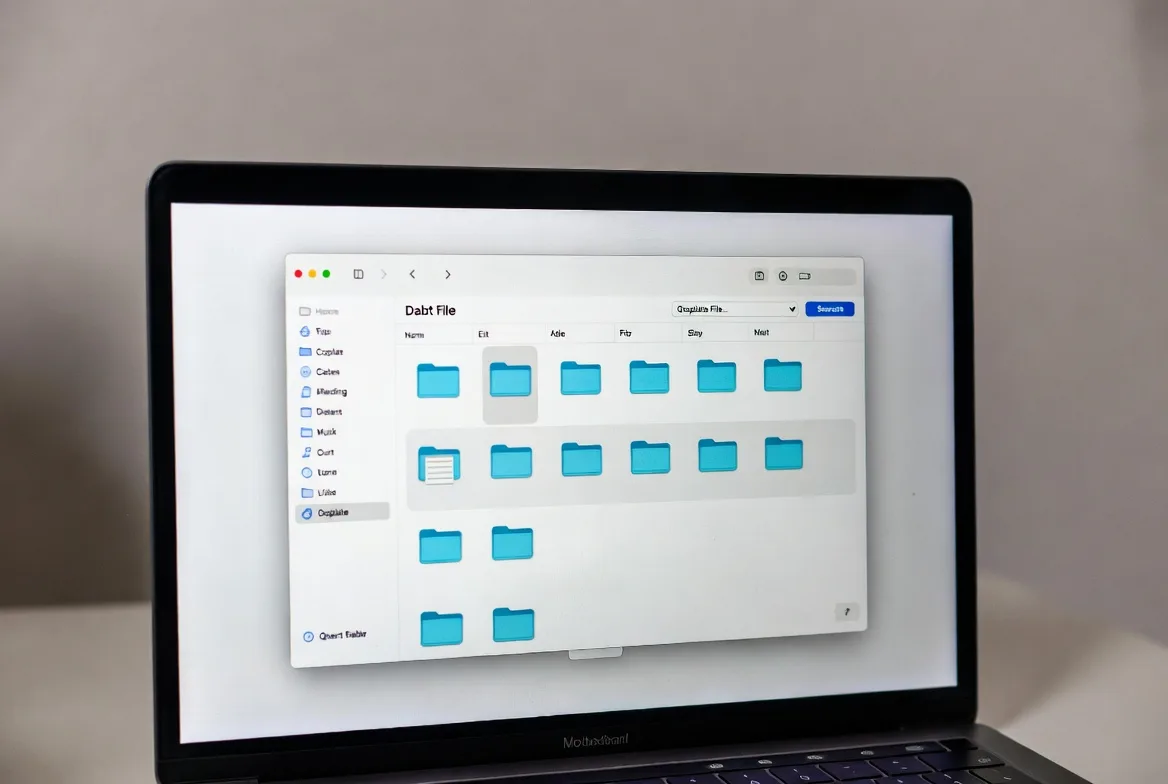
Manage Photos and Videos to Save Cloud Space
Photos and videos devour storage faster than any other file type. A strategic approach here yields the biggest gains.
Reduce automatic backup quality. Google Photos offers “Storage saver” mode (formerly “High quality”), which compresses images to roughly 16MP and videos to 1080p. For most people, this quality remains indistinguishable from the original. The space savings? Massive—often 60-70% smaller files.
To optimize iCloud storage for photos, enable “Optimize iPhone Storage” in Settings > Photos. This keeps full-resolution versions in iCloud while storing smaller versions on your device. The trade-off: accessing full-resolution photos requires internet connection.
Delete photo bloat systematically. Open your photo library and search for:
– Screenshots (they pile up unnoticed)
– Burst photos (keep one, delete 20 near-duplicates)
– Blurry or failed shots
– Photos of receipts you’ve already filed or expensed
– Memes you saved but never shared
Most phones now have “Similar photos” features that group near-identical shots. iPhone’s “Duplicates” album (under Utilities) catches exact duplicates automatically.
Move large video files locally. A 10-minute 4K video can exceed 4GB. If you have dozens of these, they’re crushing your cloud allocation. Transfer them to an external hard drive, then delete the cloud copies. Keep only videos you regularly share or reference.
Use alternative services strategically. Amazon Photos offers unlimited photo storage for Prime members (though video still counts). If you already pay for Prime, use it for photos and reserve your primary cloud storage for documents and other files.
The nuclear option: disable photo backup entirely for a month. Download everything to a local drive first, then turn off cloud photo sync. You’ll immediately reclaim potentially 50-80% of your storage. Manually upload only your best photos going forward.
Clear Email Attachments and Old Messages
Email storage hides in plain sight, especially if you use Gmail. Those 15GB of “Google storage” include every email attachment you’ve ever received.
To free Google Drive space through email cleanup, use these search operators in Gmail:
has:attachment larger:10M– Finds emails with attachments over 10MBhas:attachment older_than:2y– Shows emails with attachments older than two yearsfilename:pdf has:attachment– Targets PDF attachments specificallyfrom:newsletter has:attachment– Catches marketing emails with large graphics
Review results, download anything you need to keep locally, then delete the emails. Remember to empty Gmail’s trash afterward—deleted emails sit there for 30 days.
Promotional emails with embedded images add up. Unsubscribe from newsletters you don’t read, then search for the sender and delete all past emails. A single retailer might have sent you 200 emails over three years, each with 2-3MB of images.
For iCloud Mail users, the process differs. Mail doesn’t count against iCloud storage the same way, but attachments in iCloud Drive do. Check your iCloud Drive for a “Mail Downloads” or “Attachments” folder and clear it periodically.
Outlook users with OneDrive should check their “Email Attachments” folder in OneDrive. Outlook often auto-saves attachments here, creating duplicates you didn’t request.

One user cleared 4.2GB by deleting three years of automated report emails from a project management tool. Each contained a 15MB PDF. That’s the power of targeted email cleanup to reduce cloud storage usage.Optimize App Backups and Settings
App backups protect your data but often back up far more than necessary.
On iPhone, go to Settings > [Your Name] > iCloud > Manage Storage > Backups > [This iPhone]. You’ll see a list of apps with backup toggles. Disable backup for:
– Games (unless you’ve invested significant time—most sync progress to their own servers)
– Apps you rarely use
– Apps you can easily reconfigure
– Social media apps (your data lives on their servers, not your phone)
Each disabled app might save 100MB to several gigabytes. Messaging apps like WhatsApp can accumulate 5-10GB of backup data if you’re in active group chats.
Android users should open Settings > Google > Backup and check “App data.” Tap “Manage backup” to see which apps are backing up and how much space each uses. Disable unnecessary ones.
Adjust backup frequency if your service allows it. Daily backups make sense for critical data; most apps don’t change enough to warrant daily snapshots. Weekly backups cut storage use by 70% with minimal risk.
For Google Drive, check “Backup and Sync” settings. Many people unknowingly back up their entire Desktop and Documents folders, including temporary files and downloads. Exclude folders that don’t need cloud protection.
This approach to manage cloud storage space focuses on being selective rather than comprehensive. Back up what matters; skip what doesn’t.
Most people treat cloud storage like a junk drawer—they keep throwing things in until it won’t close anymore. The solution isn’t a bigger drawer; it’s regular maintenance. I recommend the quarterly review method: every three months, spend 30 minutes deleting files you haven’t touched. This prevents the overwhelming cleanup most people face when they hit their storage limit.
Marcus Chen, Digital Organization Consultant and author of “The Lean Digital Life
Move Files to Alternative Storage Solutions
Sometimes the best way to free cloud storage is to move data elsewhere entirely.
External hard drives offer the most storage per dollar. A 2TB portable drive costs roughly what you’d pay for one year of 200GB cloud storage. Transfer:
– Completed project archives
– Old photos and videos you want to keep but rarely access
– Large media files (movies, music libraries)
– Historical documents
The downside: no automatic sync, and you need to remember to back up the drive itself (preferably to a second drive).
Network Attached Storage (NAS) devices work well for households with multiple users. Products like Synology or QNAP boxes create personal cloud storage at home. The upfront cost runs $200-500 plus drives, but you get terabytes of storage with no monthly fees.
Other free cloud services can supplement your primary storage. Stack multiple services:
– Google Drive: 15GB free
– iCloud: 5GB free
– Dropbox: 2GB free (expandable through referrals)
– Microsoft OneDrive: 5GB free
– MEGA: 20GB free
Distribute different file types across services. Keep active work documents in your primary cloud, archive photos in Amazon Photos (if you have Prime), and store large personal files in MEGA.
Local storage on devices shouldn’t be overlooked. Modern phones and laptops have substantial storage. Keep frequently accessed files locally and only sync essentials to the cloud. This inverts the typical model but works well for people with large local storage and limited cloud space.
The cloud storage management tips here emphasize hybrid approaches. No single solution handles everything perfectly, but combining methods creates a flexible system that grows with your needs.
Cloud Storage Comparison
| Service | Free Storage | What Counts Toward Storage | Easiest Cleanup Tools | Photo Backup Options |
|---|---|---|---|---|
| iCloud | 5GB | Photos, backups, documents, mail | Built-in storage management in Settings | Original quality or optimized |
| Google Drive | 15GB | Drive files, Gmail, Google Photos | Storage manager with size sorting, duplicate finder extensions | Original or storage saver quality |
| Dropbox | 2GB | All files and folders | File size sorting, desktop app cleanup tools | Camera uploads available |
| OneDrive | 5GB | Files, folders, email attachments | Storage sense, file sorting by size | Camera roll backup available |
| MEGA | 20GB | All uploaded files | Web interface with size/date sorting | Manual upload only |
FAQs
When you max out cloud storage, new data stops syncing. Your phone won’t back up, new photos won’t upload, and documents won’t save to the cloud. Existing files remain accessible, but nothing new gets added until you free space or upgrade. Some services like iCloud will repeatedly notify you with prompts to buy more storage.
Quarterly cleanups work well for most users. Set a calendar reminder for the first week of every third month. If you’re a heavy user who uploads large files daily, monthly reviews make more sense. The key is consistency—regular small cleanups beat infrequent massive purges that take hours and feel overwhelming.
As of 2026, MEGA offers 20GB free, the most among major providers. Google Drive provides 15GB (shared across Gmail, Drive, and Photos). OneDrive and iCloud each offer 5GB. Dropbox starts at just 2GB but allows expansion through referrals. However, “most storage” doesn’t always mean “best choice”—consider which ecosystem you already use and which features matter most to you.
Freeing up cloud storage doesn’t require technical expertise or paid tools. It requires a shift in thinking—from treating cloud storage as infinite to managing it as a limited resource.
Start with the quick wins: empty your trash, delete obvious duplicates, and clear old email attachments. These actions alone typically reclaim 2-3GB within 15 minutes. Then tackle the bigger projects: optimize photo backup settings, disable unnecessary app backups, and move archive files to local storage.
The strategies outlined here work whether you use iCloud, Google Drive, OneDrive, or any combination of services. The principles remain constant: identify what’s consuming space, eliminate what you don’t need, optimize what you keep, and prevent future bloat through smarter settings.
You don’t need to upgrade your storage plan. You need to use what you already have more intentionally. Implement these methods today, and you’ll likely find yourself with gigabytes of free space—and the knowledge to keep it that way.